

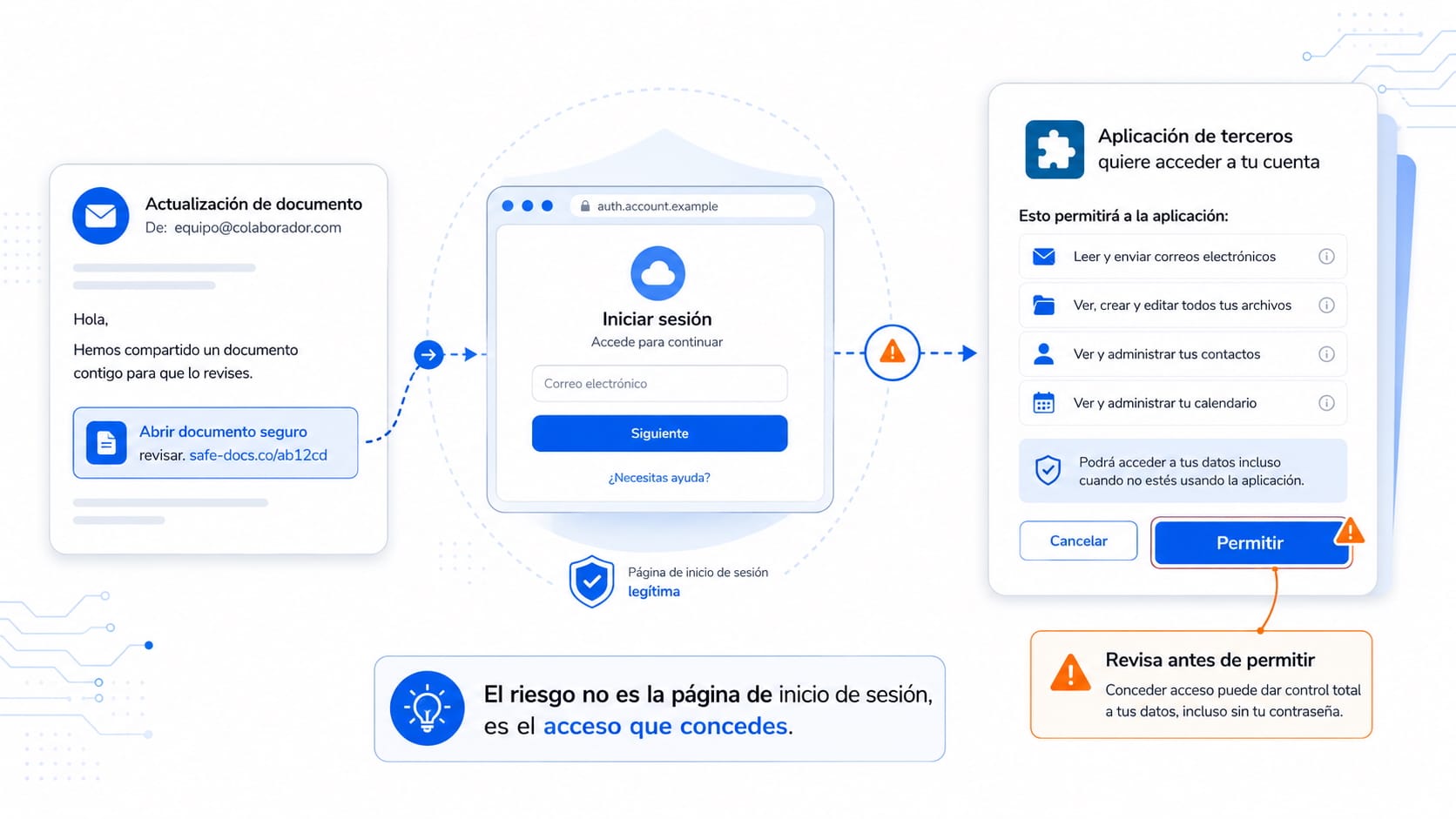
You receive an email containing a link to view a document, install a tool or access a service.
You click it. The genuine Microsoft or Google sign-in page appears. You log in as usual and complete multifactor authentication.
Everything looks legitimate.
Then, another screen asks for permission to read your email, access your files, view your contacts or maintain access to your account.
You click “Allow.”
The attacker did not need to steal your password. You authorized the access yourself.
Authentication Is Not the Same as Authorization
When we sign in, we prove who we are. That is authentication.
When we allow an application to access certain data or perform actions on our behalf, that is authorization.
Services such as Microsoft 365 and Google Workspace allow us to connect external applications without sharing our passwords directly. Instead, the application receives limited access (represented by a token) to the resources the user has authorized.
This is a legitimate and useful mechanism. It enables us to connect calendars, productivity tools, document managers and many other services.
The problem arises when a malicious application persuades us to grant those permissions.
A Legitimate Page Can Still Lead to a Dangerous Decision
In traditional phishing, attackers often create a fake website to capture usernames and passwords.
In consent phishing, the sign-in page may be completely genuine. The address may really belong to Microsoft or Google, and multifactor authentication may work exactly as expected.
The deception is not necessarily on the page where we authenticate. It lies in the application requesting access and in the permissions we are about to grant.
This can create a false sense of security:
“The page is official, so it must be safe.”
But a legitimate platform does not automatically make the connected application trustworthy.
What Can an Authorized Application Do?
That depends on the permissions granted. An application may request the ability to:
- Read your email.
- View or modify your files.
- Access your contacts and calendars.
- Send messages on your behalf.
- View your profile information.
- Maintain access even when you are no longer using the application.
These permissions are not inherently dangerous. Many legitimate applications need them to function.
The warning sign appears when the access requested is excessive, unexpected or unrelated to the service being offered.
A tool that claims to let you view a single document should not normally require permanent access to your entire mailbox.
What to Check Before Clicking “Allow”
Before authorizing an application, pause for a few seconds and check:
- Who is requesting access. Review the name of the application and its developer. Be cautious with generic names or names that closely imitate familiar services.
- How you reached the page. A request opened through an unexpected email, urgent message or chat link deserves particular scrutiny.
- Which permissions are being requested. Read the full list. Do not stop after confirming that the page belongs to Microsoft or Google.
- Whether the permissions are proportionate. Ask whether the application genuinely needs that level of access to do what it promises.
- Whether you are being pressured to act quickly. Urgency is commonly used to make people approve requests without thinking.
If something does not make sense, cancel the request. Access the service through its official website or ask your support team to verify it.
Changing the Password May Not Be Enough
When we suspect that an account has been compromised, our first reaction is usually to change the password.
That is a sensible measure, but in this case it may not solve the entire problem.
Once an application has been authorized, it may retain a token that allows it to continue accessing certain resources without needing the new password.
You should also:
- Review the applications connected to the account.
- Revoke any authorization you do not recognize.
- Check the permissions already granted.
- Review recent activity and active sessions.
- Report the incident to the security team if it involves a professional or institutional account.
The password protects the sign-in process. Permissions determine what an application can do once it has been allowed inside.
Before Authorizing, Look Beyond the Domain
Checking the address of a webpage remains important, but it is no longer always enough.
A legitimate screen can present a dangerous request. Multifactor authentication may confirm that you are really you, but it cannot decide whether the application deserves your trust.
That decision is still yours.
The next time an application asks to access your email, files, contacts or calendar, do not click “Allow” automatically.
Check who is asking, which permissions are being requested and what the application will be able to do on your behalf.