

Data breaches happen. And they don’t always come with a warning. That’s why the most useful response isn’t to panic, but to have a clear method to check and act within minutes.
There’s also a key detail that explains why this matters so much: reusing the same password across multiple websites turns a “small” breach into a major problem. If one account is exposed (email/username + password), an attacker can try those same credentials on other services. This technique is extremely common and can affect social media accounts, email, online stores, and even work tools.
Below, you’ll find how to check whether a password (or email address) has been leaked and, most importantly, what to do immediately afterward to regain control and prevent a domino effect.


Warning Signs (Without Panicking)
Before checking anything, it’s important to recognize common warning signs. Sometimes the first clue is subtle.
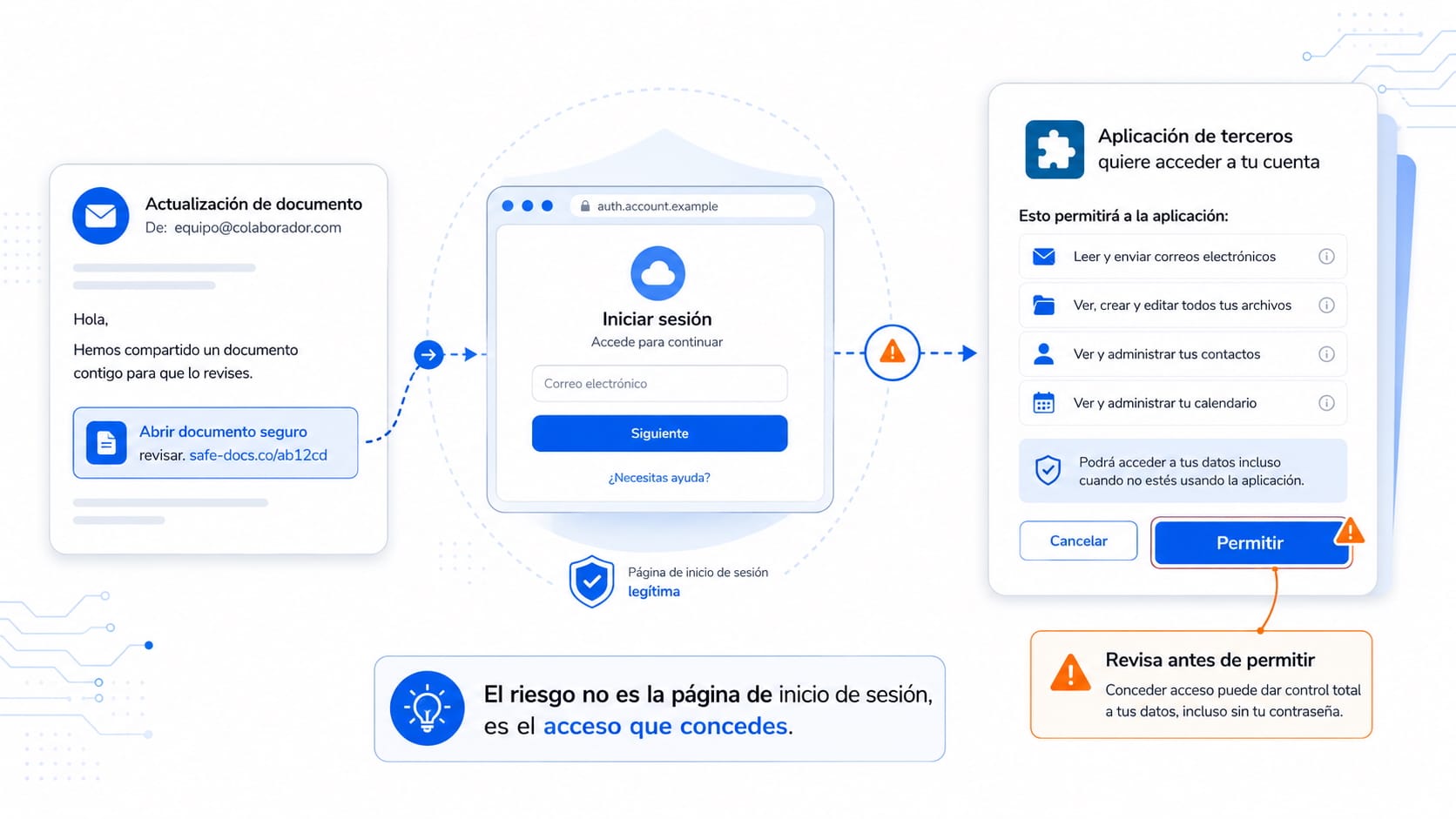
Legitimate Alerts vs. Phishing Emails: How to Tell the Difference
There are legitimate notifications (for example, from your email provider or a social network) informing you about a login attempt or a password change. But there are also fake messages designed to steal your credentials.
Quick indicators:
A real alert usually appears inside your account as well (under “Security” or “Activity”).
Phishing messages often create urgency (“last chance,” “your account will be closed today”) and push you to click a link.
If in doubt, don’t use the link in the email. Open the official app or manually type the website address into your browser.
Typical Suspicious Activity
Login attempts from unknown locations or devices.
Emails saying “your password has been changed” when you didn’t change it.
Changes to recovery methods (phone number or backup email).
Purchases, posts, or messages you didn’t make.
If any of these signs appear, move straight to verification and follow an immediate action checklist.
How to Check If Your Password or Email Has Been Exposed in a Data Breach
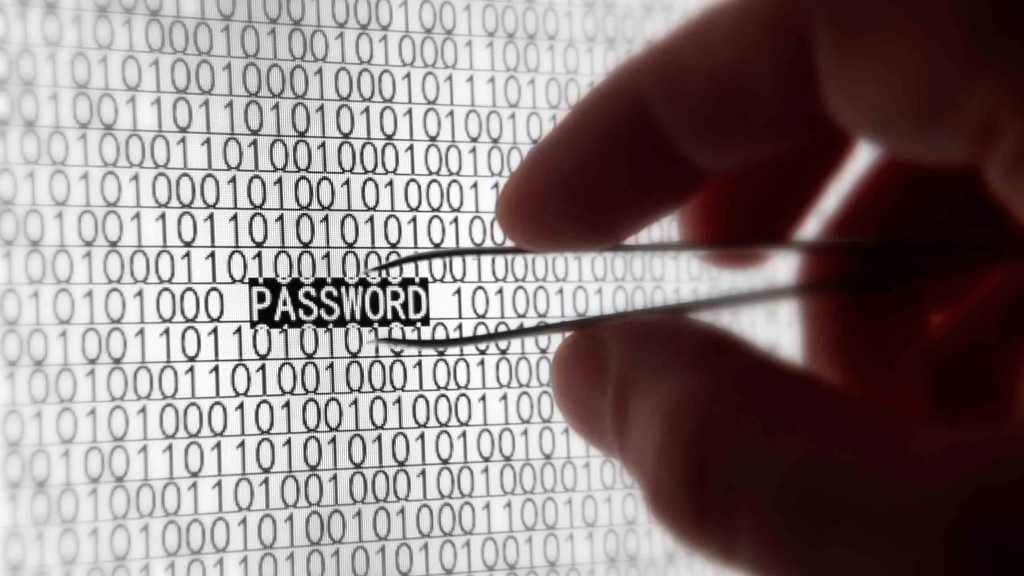
There’s one key principle to keep in mind: most tools check whether your email address appears in known data breaches. Some password managers and browsers can also detect compromised passwords. In all cases, the basic rule is clear: never enter your password into random websites “to check it.” The standard approach is to check your email address and then secure the affected accounts.
Option 1: Check Breaches with Have I Been Pwned (Step by Step)
One of the most widely used services for checking whether an email address appears in leaked databases is Have I Been Pwned (HIBP). It aggregates publicly disclosed data breaches.
Steps:
Go to the official website.
Enter the email address you want to check.
Review the result. If there’s a match, scroll down to see which breaches are listed.
How to interpret the result:
If there are no matches, the status typically appears as “good news” (often shown in green).
If there are matches, the result indicates that your email appears in one or more breaches (often shown in red).
Important: If your email appears in a breach, it does not necessarily mean your current password is still the same as the leaked one. However, it is a clear signal to take action.
Option 2: Review Saved Passwords in Chrome (Google Password Manager)
Many people rely on their browser to store passwords. Chrome includes a built-in password manager with a security check feature that flags weak, reused, or compromised passwords.
What to do:
Open the Passwords/Security section in Chrome or access Google Password Manager.
Run the security check.
Follow the recommendations to change any affected passwords.
Advantage: This method is convenient and practical for non-technical users because it connects directly to the passwords already stored in the browser.
Option 3: Check in Safari / iPhone (Compromised Password Detection)
In Apple environments, Safari and iCloud Keychain can automatically warn you about compromised passwords.
The logic is the same:
Open the Passwords section in Settings (iPhone/iPad) or Safari (Mac).
Check the Security Recommendations.
Change any passwords marked as compromised or vulnerable.
This built-in system makes it easy to detect risks without needing external tools.
Interpreting the Result (What “Appears” Actually Means — and What It Doesn’t)
Knowing how to interpret the result prevents common mistakes like “it doesn’t appear, so everything is fine” or “it appears, so everything is lost.” Neither assumption is accurate.
Case A: Your Email Appears in Breaches
This means your email address is linked to a recorded data breach. The key here is to respond methodically:
If the password associated with that service is still the same (or similar), the risk is high.
If that password was reused on other accounts, the risk increases significantly, because an attacker can test those credentials across multiple services (credential stuffing).
The priority is containment: change the password on the affected service first, then on any other accounts where it was reused.
Case B: It Doesn’t Appear, but There Are Warning Signs
A “no results” status does not guarantee zero risk. There may still be:
Recent breaches that haven’t yet been added to public databases.
Phishing or malware attacks (without any public breach).
Password reuse on sites that haven’t been detected.
If there are warning signs (unusual logins, password change alerts, recovery info modifications), act immediately:
Change the password.
Log out of all active sessions.
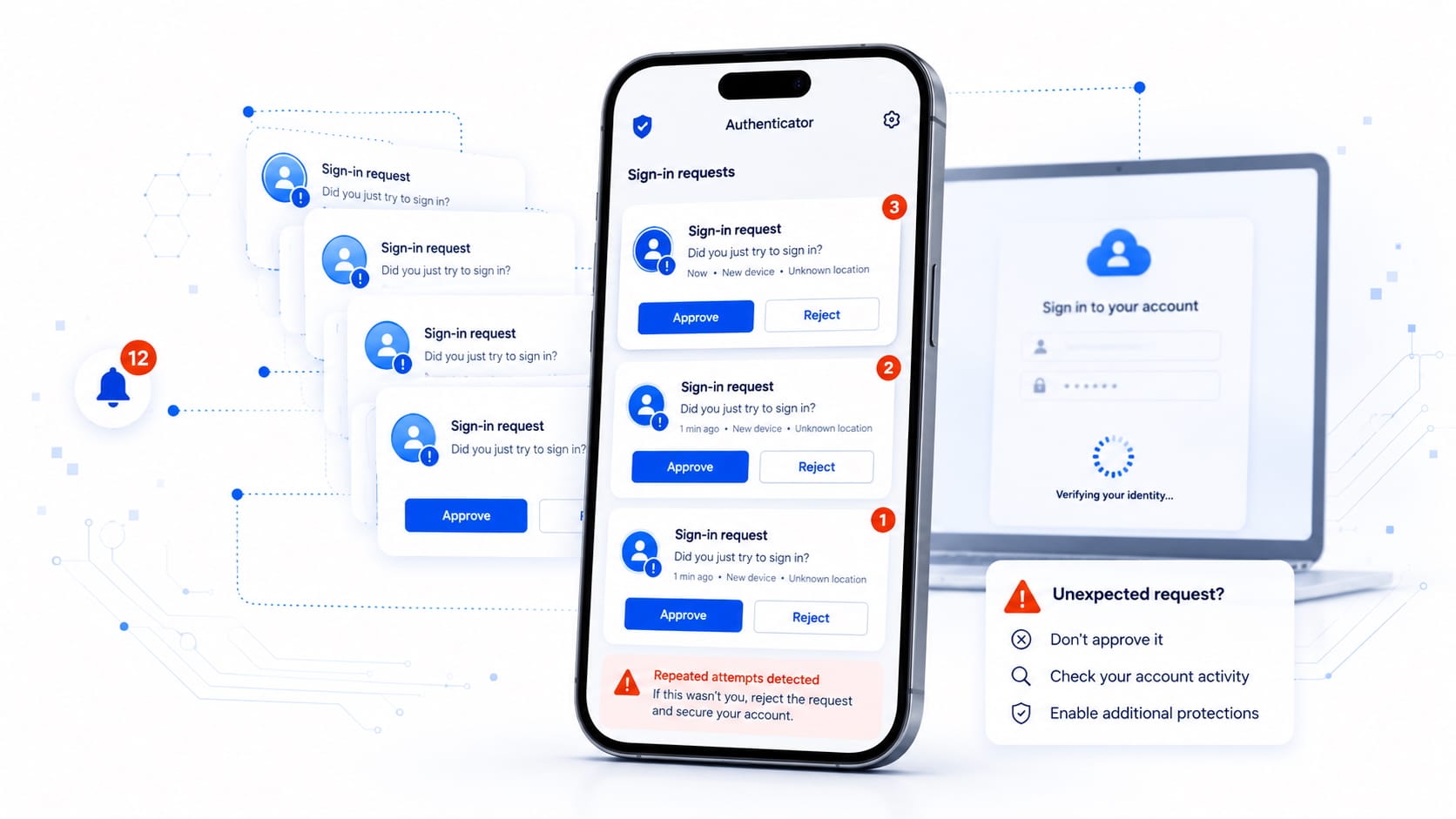
Enable two-factor authentication (2FA).
Absence from a breach database does not override suspicious activity.
Case C: A Reused Password Appears (Highest-Risk Scenario)
Password reuse is the single factor that multiplies damage the most.
If a leaked password was reused elsewhere, assume that every account where that password was used is at risk. Each one must be updated with a unique, strong password.
From a security perspective, this is no longer about one compromised service — it becomes an exposure cascade. The objective is to break that chain immediately.
What to Do If Your Password Has Been Exposed (10-Minute Checklist)
This is the action plan that typically delivers the best results with the least effort. It’s designed to be executed immediately.
1) Change the Password and Close Active Sessions
Change the password of the affected account to a unique, long password (ideally 12–16+ characters).
Look for options such as:
“Log out of all devices”
“Active sessions”
“Connected devices”
Terminate any sessions you don’t recognize.
This step is critical because changing a password does not always invalidate existing sessions automatically.
2) Enable 2FA/MFA (Best Option Depending on the Case)
Activating two-factor authentication significantly reduces the impact if someone knows your password.
Best practice:
Prefer an authenticator app (more robust than SMS), such as Google Authenticator or Microsoft Authenticator.
Use SMS only if no stronger alternative is available.
Store recovery codes in a secure location.
Security-focused guidance consistently treats this as a high-priority reinforcement measure.
3) Identify Where the Password Was Reused (High Priority)
If password reuse is suspected:
Change passwords first on:
Primary email account
Banking/financial services
Social media
Payment platforms
Then update:
Online stores
Forums
Secondary services
The core principle remains: a single breach can cascade into multiple account compromises if the same password was reused.
4) Review Access and Regain Full Control
Check for emails stating “your account was accessed” or similar alerts.
Inspect your email settings for suspicious forwarding rules or automatic redirects.
Verify that recovery email and phone number have not been modified.
If anything has been altered, prioritize securing your main email account first. In most ecosystems, email functions as the master recovery vector — effectively the key that allows password resets elsewhere.
Operational Objective
This sequence focuses on:
Session invalidation
Credential rotation
Attack surface reduction
Recovery channel protection
Executed properly, it neutralizes the most common post-breach exploitation paths within minutes.
How to Prevent It from Happening Again (Without Overcomplicating Things)
You don’t need to become a cybersecurity expert. With three core habits, you can dramatically reduce your risk.
1️⃣ Strong Passwords: A Simple Rule (Length + Uniqueness)
Long:
A memorable passphrase is often better than a short, complex-looking password with random symbols.
Example logic:
Longer = harder to brute-force.
Predictable structure = easier for you to remember.
Unique:
One password per service — yes, even for “unimportant” accounts.
The reason is straightforward:
If one password leaks and it’s reused, the compromise can spread across multiple platforms.
2️⃣ Password Managers: Why They Help and How to Start
A password manager allows you to:
Generate long, unique passwords automatically.
Store them securely.
Eliminate mental “password recycling.”
Common practical solutions include:
Bitwarden
1Password
Google Password Manager
How to begin (minimal friction approach):
Install the manager.
Secure it with one strong master password.
Start updating passwords gradually — no need to fix everything in one day.
Prioritize email, banking, and primary accounts first.
This single tool removes the biggest structural weakness: reuse.
3️⃣ Passkeys: The Modern Alternative (Explained Simply)
Passkeys are designed to reduce reliance on traditional passwords.
Instead of typing a password, authentication happens via:
Device-based cryptographic keys.
Biometrics (Face ID, fingerprint) or device PIN.
When a service supports passkeys, enabling them is usually a strong security upgrade — especially for critical accounts.
Major platforms like Google and Microsoft already support passkeys in many scenarios.
Why they’re safer:
They can’t be reused across sites.
They’re resistant to phishing.
There’s no password to leak.
The Bottom Line
If you:
Use long, unique passwords
Rely on a password manager
Activate passkeys when available
You eliminate the most common real-world attack paths — without adding complexity to your daily life.
Security doesn’t require expertise. It requires removing the obvious weaknesses.
Common Mistakes That Leave the Door Open
Changing Only One Account
If a password was reused, changing it on just one account does not solve the problem.
An attacker can simply access another service where the same password is still active.
When reuse exists, the fix must be systemic: every account that used that password must be updated.
Reusing “Variants” of the Same Password
Switching from:
Summer2024!
toSummer2025!
is not meaningful protection.
Attackers routinely test predictable mutations:
Year increments
Added symbols
Capitalization changes
If there’s a detectable pattern, automated tools will try it.
True protection requires completely different, unrelated passwords.
Storing Passwords in Insecure Places
Common risky storage methods include:
Unprotected notes apps
Shared documents (cloud drives, team folders)
Personal messaging threads
Plain text files on desktop
These can be exposed through device compromise, account breaches, or accidental sharing.
A safer alternative is:
A dedicated password manager (e.g., Bitwarden or 1Password)
The built-in system keychain (such as iCloud Keychain)
The difference is structural: password managers encrypt data and are designed specifically for credential protection.
The Core Principle
Security failures often persist not because of one weak point — but because the same weakness exists in multiple places.
Fixing the root pattern (reuse + insecure storage) removes the recurring risk.
Conclusion
Knowing whether a password has been leaked shouldn’t be dramatic or mysterious: you check your email with a reliable tool, review the passwords saved in your browser, and if there’s any sign of exposure, you execute a clear action plan.
The single most effective long-term protection is simple: unique passwords + 2FA + a password manager. With that combination in place, even if a breach occurs, the overall impact is drastically reduced.